How to Add Subtitles to a Video in TeraBox App? Android & iOS
Sometimes you save a video that is in another language and also doesn’t have subtitles. Subtitles are words that show on your screen when you play a video. Subtitles make videos cooler and easy to understand. In this post, we will guide you on how to add subtitles to a video by using different methods.
Terabox is not just a cloud storage, but it has a feature where you can manually add subtitles to your video or generate AI subtitles. You can add subtitles on both iOS and Android; you don’t need a computer for this. So Terabox has a solution for you that makes your videos more enjoyable to watch.
What You Need
You should consider these things before we start:
• Download the terabox app on your device
• Save video in your terabox account
• You should have a Stable internet connection
Now let’s discuss the methods for adding subtitles to a video.
Method 1: Add Video Subtitles Manually with TeraBox
This method works when you already have subtitle files, and you can upload them simply to your TeraBox account and use them. We will guide you step by step to add a video to your terabox app.
Step 1: Open Terabox
First, open a terabox account on your device.
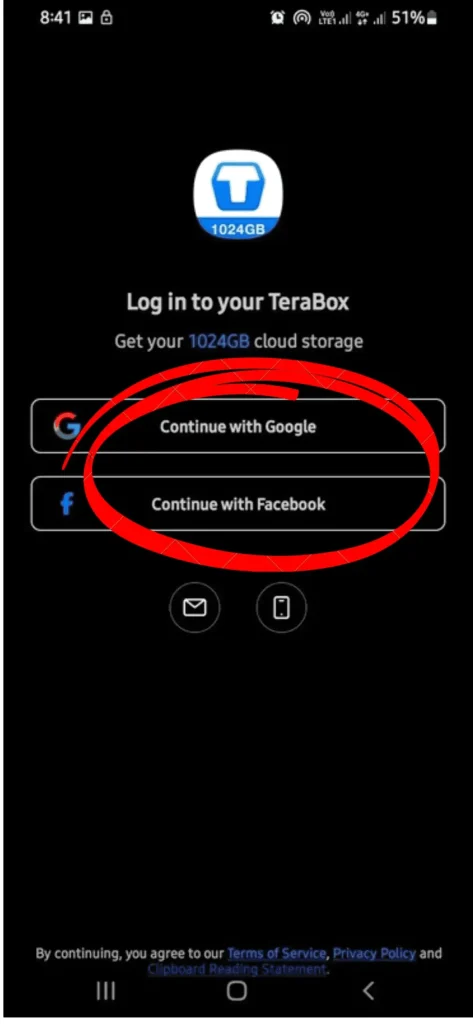
Step 2: Log In to Terabox
If you don’t have an account, create your account or log in.
Step 3: Upload Video File
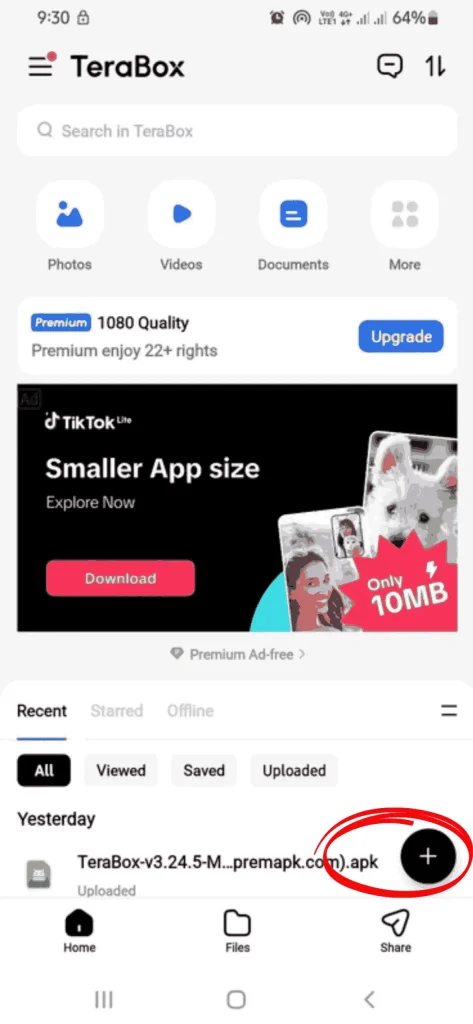
Now, click on the “+” option and upload the file that you want to watch. Upload video is the premium feature of terabox.
Step 4: Upload Subtitle Files
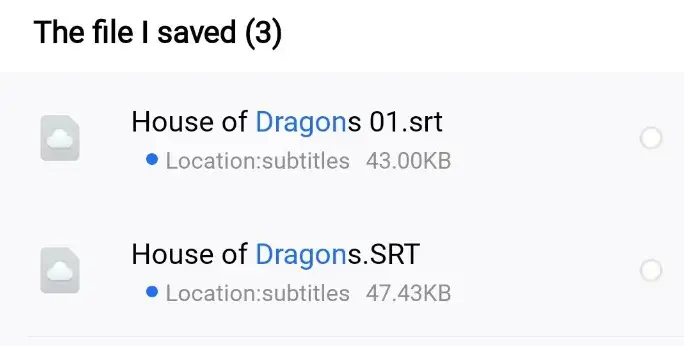
This time, upload a subtitle file by tapping on the “+” option again. You can access your file from terabox or your smartphone.
Step 5: Play Video
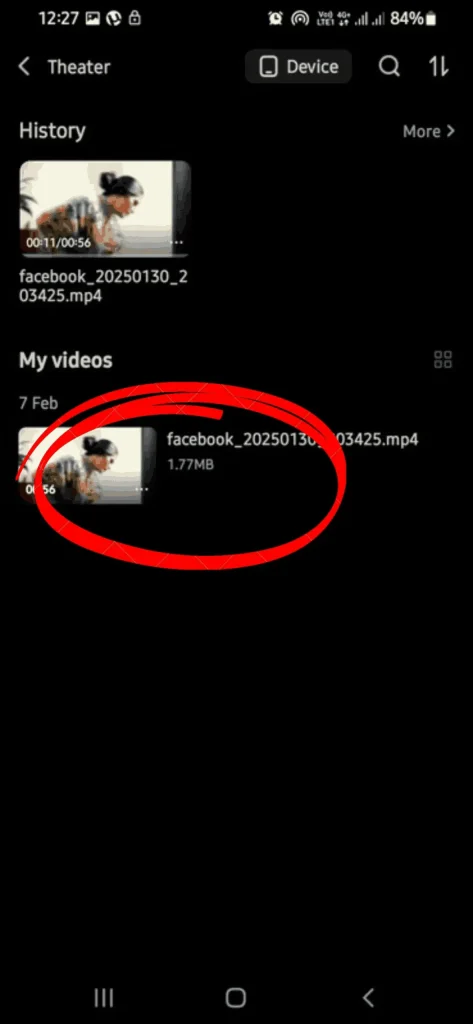
Select the video that you want to watch in full screen.
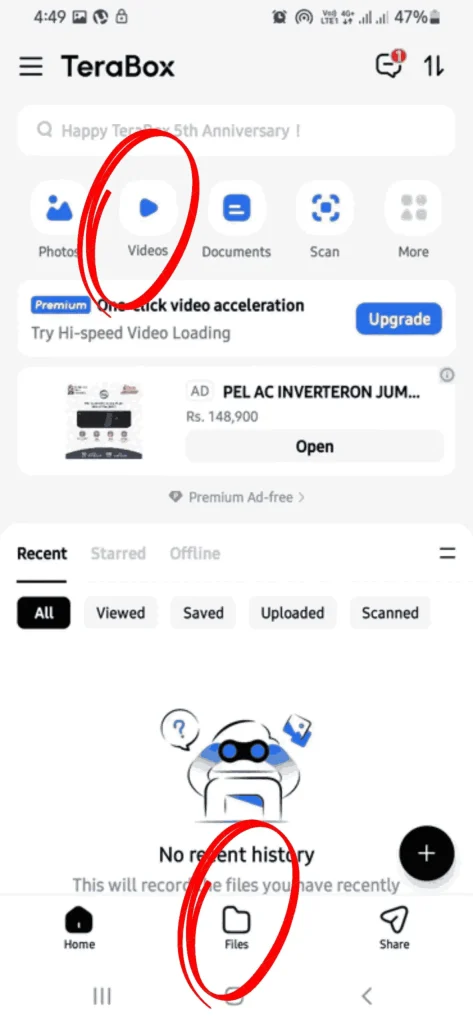
Click on the file to play video.
Step 6: Open video player options
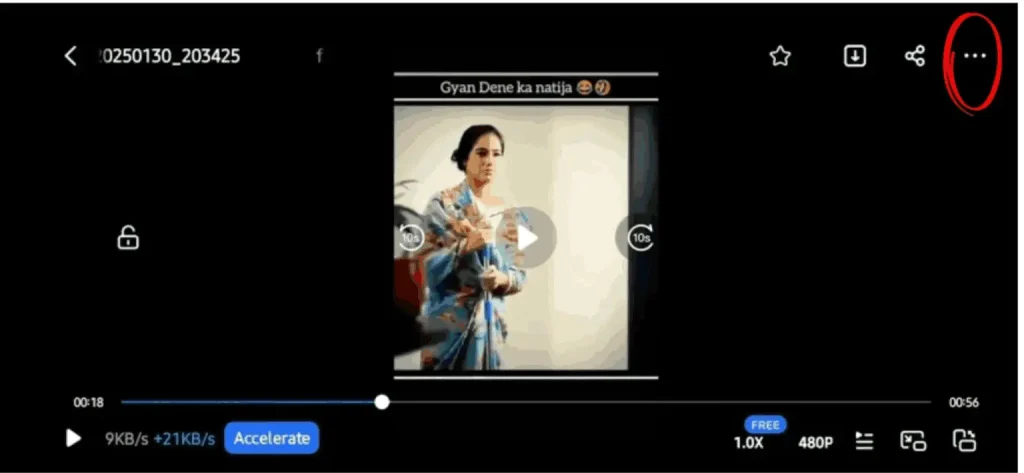
In the top right corner, tap on the three dots to open the player option.
Step 7: Open Subtitles List
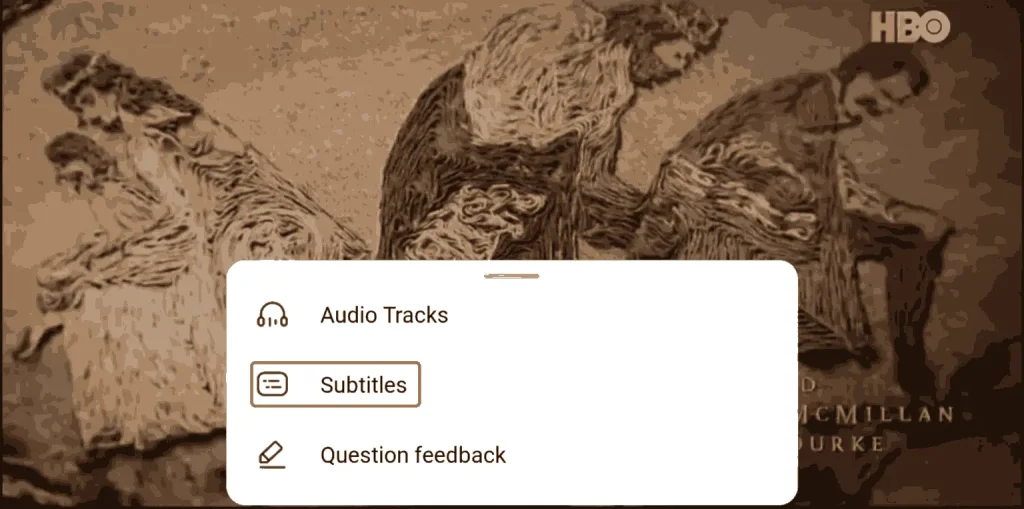
A menu will appear and show three options: Audio Tracks, Subtitles, and Question Feedback. Click on the Subtitles option to open the list of available subtitles.
Step 8: Select Built-in Subtitles from Video
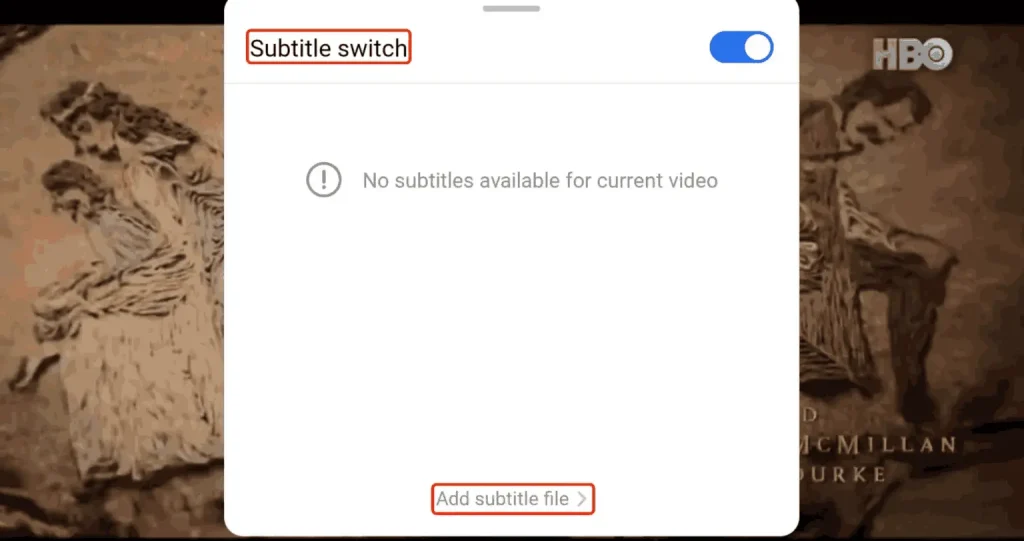
To enable subtitle selection, ensure your subtitle option is turned on. If the video does not have built-in subtitles, click on the “add subtitle file” button at the bottom.
Step 9: Add Subtitles
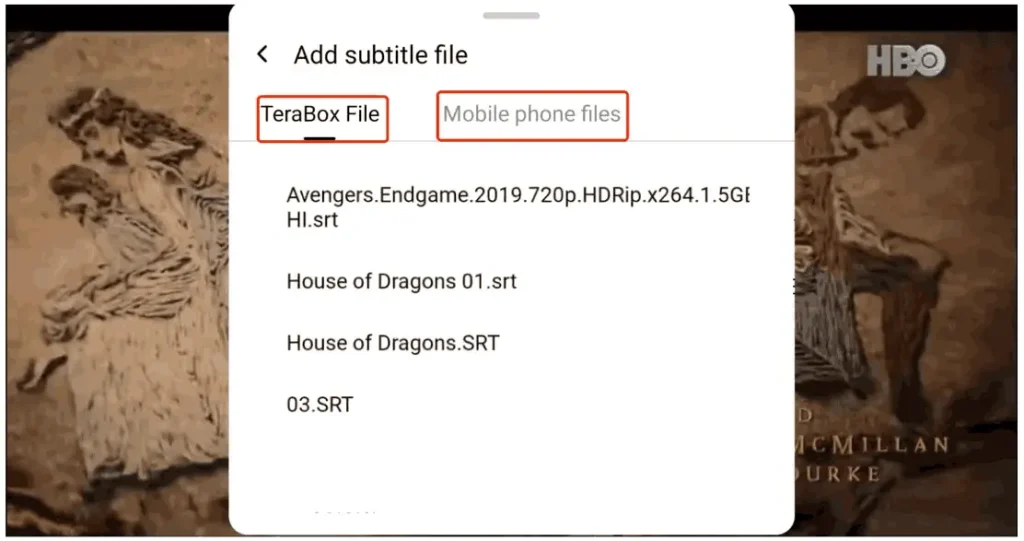
Choose the subtitle according to your video.
- If your subtitle files are uploaded to Terabox, you can select them from “Terabox File.”
- If the file is on your smartphone, you can access it from “Mobile phone files.”
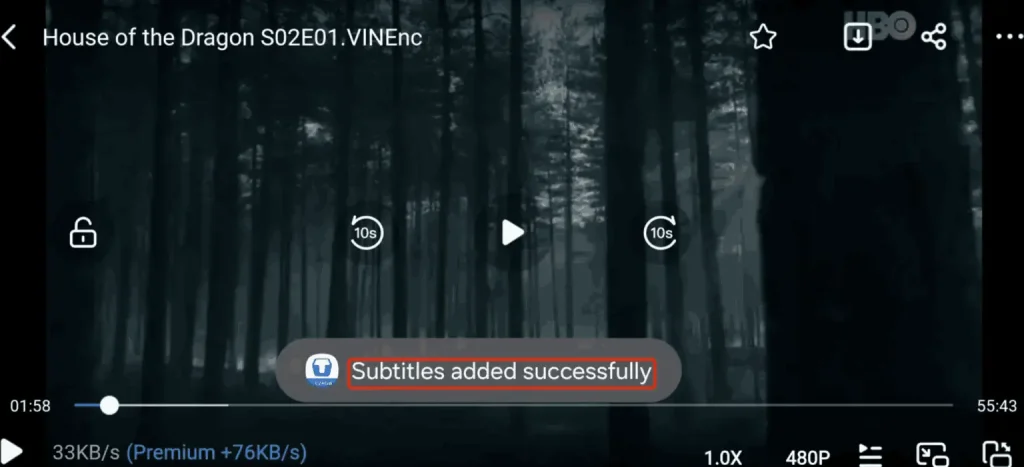
Step 10: Subtitles Added Confirmation
You will receive a confirmation when you add a subtitle successfully.
Step 11: Check Subtitles
By playing the video, check the subtitles to see if they match the audio and video.

If you do not have the correct subtitle files to import? Don’t worry—Terabox has an amazing feature of AI subtitle generation, but it is available only for premium users. You can unlock many features like 2TB storage, high video speed, automatic backup, and more for just $3.49 per month. You can download the Terabox mod apk to access premium features for free.
Method 2: Generate AI subtitles with TeraBox
Follow these steps to understand how to add subtitles to a video in Terabox. By using AI, follow step-by-step to know how to add subtitles to a video in terabox.
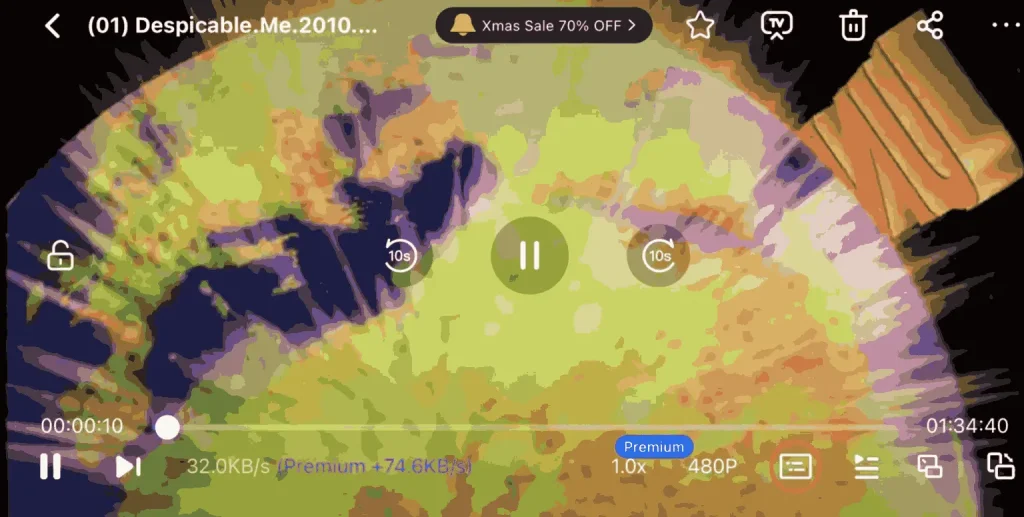
Step 1: Open Subtitles Option
At the bottom of the screen, tap on the subtitles button while playing the video.
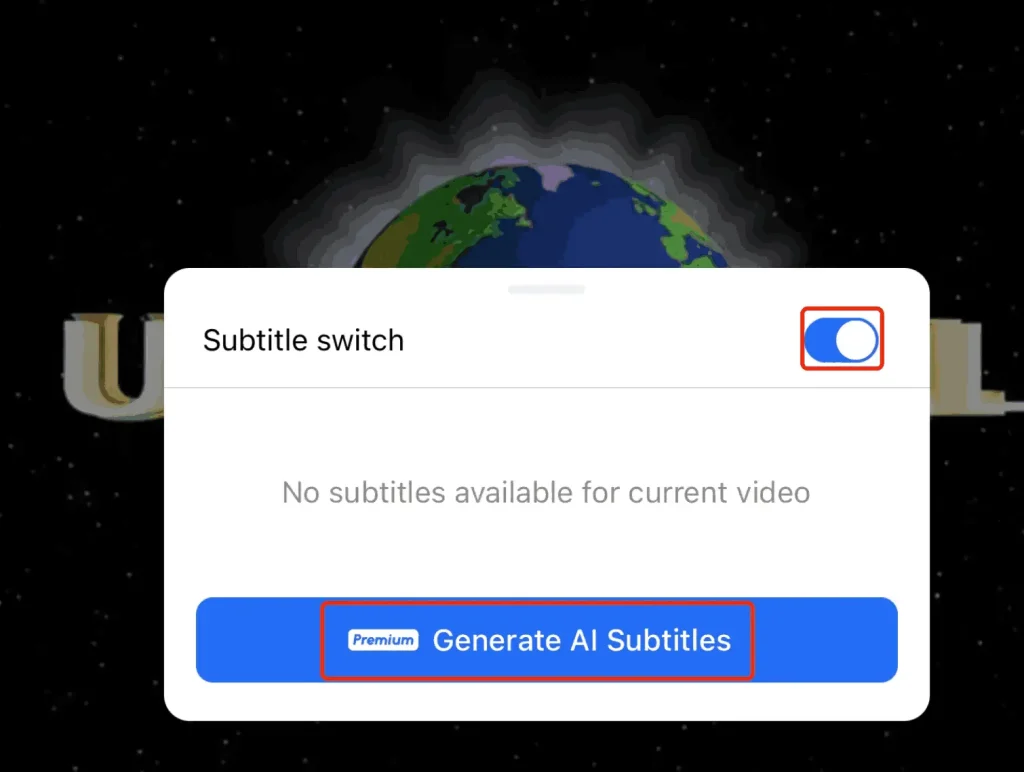
Step 2: Open the AI Subtitles Option
Click on the button “Generate AI Subtitles.”
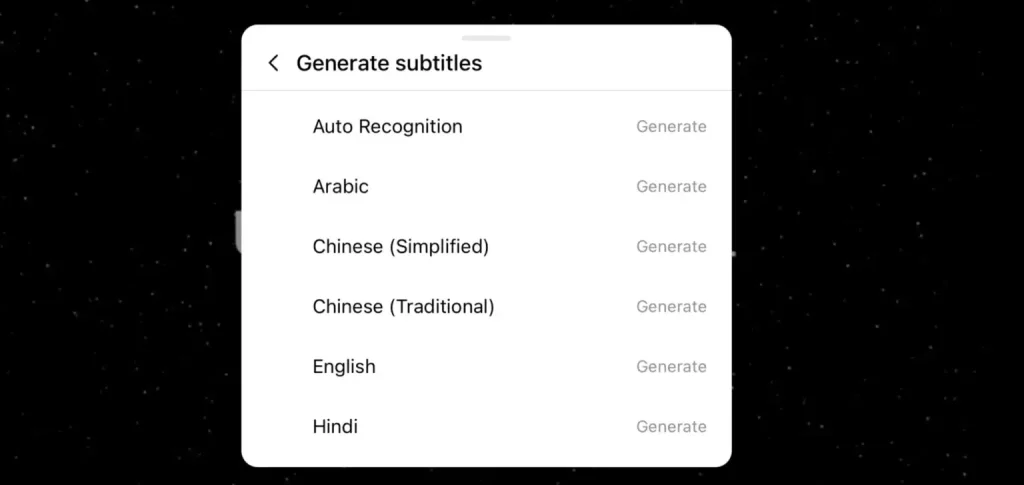
Step 3: Select Language
Choose the language in which you want to generate subtitles.
Step 4: Generate AI Subtitles
After choosing the language, the subtitles will be created.
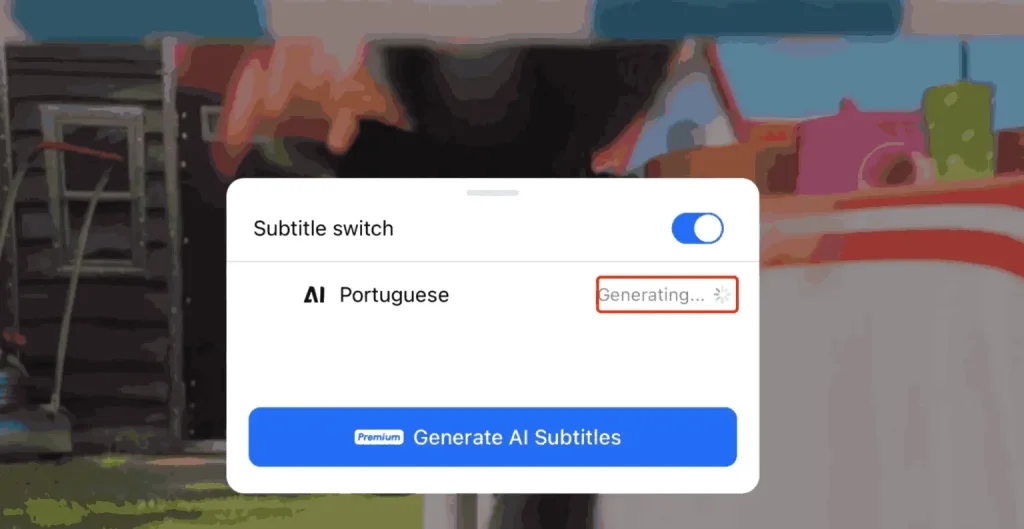
Step 5: Test AI-Generated Subtitles
Now check if the AI-generated subtitles match the video or not.

Supported Subtitle Formats
Before uploading, make sure your subtitle files will be in the following formats.
- .vtt (WebVTT)—Commonly implemented for streaming video mediums.
- .ass (Advanced SubStation Alpha)—Enables layout and positioning.
- .srt (SubRip Subtitle)—a commonly adopted and easy text format.
Pro Tip: Make sure your subtitle files have been encoded in UTF-8 and are in the .srt format for optimal functionality.
Troubleshooting Subtitles Not Showing
Here are the common problems and their solutions if the subtitles are not showing in the video.
Subtitle File Name Doesn’t Match Video
- Make sure your subtitle file name is the same as the video file name.
- For example, myvideo.mp4 and myvideo.srt.
Wrong File Format
- Verify the subtitle format again. Unofficial file extensions like .txt or .docx will not be supported.
Encoding Issues
- For saving the files as UTF-8 without BOM, consider an editor that supports text, such as Notepad++.
Old App Version
- Upgrade to the latest version by making sure that the subtitle features are available.
Subtitles Not Enabled in Player
- Enable subtitles by navigating to the file’s player’s multimedia options.
File Upload Incomplete or Corrupted
- Try once more after re-uploading the video file and subtitles.
Alternative to Subtitles
Subtitles may be replaced by changing the language. You can change the audio language to any of your desired languages by using Terabox.
Conclusion
By following just a few steps, you can make your videos more enjoyable. Adding subtitles in terabox is easier whether uploading the video or generating them through AI. So, use the method that is best for you. You can do it with your smartphone, whether you use an Android or an iPhone. So in this way you can add subtitles to a video with terabox.